Wednesday, 6 March 2019

Deal Alert: Grab a First-Gen Echo Show for Just $100 from Woot

Alexa doesn’t have a face, but I imagine it would be something like the Echo Show if she did. A digital face that can not just tell you stuff, but show you too. And you can grab one for $100 today.
Woot is offering the first generation Echo Show (in black or white)—which has a larger base and slightly smaller screen than the newer version—for a single, solitary Benjamin. You can use your new toy to call friends using the included camera, control your smarthome, and pretty much anything else Alexa is capable of.
This model Show packs a 7-inch touchscreen, Wi-Fi, Bluetooth, and a pair of 2-inch speakers. An Intel Atom processor powers the thing.

But the best part is that this comes with a full one-year warranty from Amazon. Woot generally sells refurbished stuff, so it just comes with Woot’s much more limited warranty. A full year from Amazon for a now-discontinued gadget is solid. Hit the button to buy.
Deal Alert: 12″ MacBook for $400 Off from B&H

If you’ve been sitting on the idea of picking up a new MacBook but aren’t into the idea of ponying up all them dollars, B&H has a solid deal for you today. You can grab a mid-2017 12″ Macbook for just $800.
Granted this is a base-model spec Macbook—it packs a 1.2 GHz Core m3 processor, 8 GB of RAM, and a 256 GB SSD. Not a speed demon by any means, but macOS is incredibly efficient, so it should still run butter smooth on this hardware, especially for those who don’t really require a lot from their computer in the first place.
Otherwise, you should be aware that this deal is only good for the Gold or Rose Gold models, so if you were hoping for Silver or Space Gray, you’re out of luck—you’ll shell out an extra $400 smackaroos to get a different coat of paint (so to speak).

But if you’re cool with that, you can hit the button below to scoop one up. Better hurry though, this deal ends in 14 hours (at the time of writing).
How to Validate and Remove Fonts on a Mac

The humble font isn’t as humble as you might think, especially on a Mac. Fonts are more like plug-ins than you’d imagine, and because they’re loaded by macOS and the apps that run on it, a bad font can have some unexpected consequences.
Those consequences can range from the relatively benign, like some characters being displayed incorrectly, to something more annoying, like apps refusing to load or functions not working quite as they used to. Faulty fonts are rarely the cause of macOS system problems, but if you’re experiencing issues that don’t make a great deal of sense, checking out your fonts is a great first troubleshooting step to take.
Thankfully, Apple includes a tool for installing, validating and generally troubleshooting fonts with each Mac. The next time your Mac is misbehaving, and you’re out of ideas, validating your fonts is a good troubleshooting step.
How to Validate Fonts on a Mac
To begin, open the Font Book app. You’ll find it in your Applications folder. (Open Finder and click Go > Applications to open the folder.) Once open, select all of your fonts by clicking one and pressing Cmd+A.

Right-click one of the fonts and click “Validate Fonts.”

Once the validation is complete, a new window will appear confirming whether any of your faults are damaged. A green icon indicates they’re fine, a yellow icon indicates there are warnings about the font, and a red icon indicates validation failed.
How to Remove Damaged or Duplicate Fonts
Read the remaining 5 paragraphs
How to Use VLOOKUP on a Range of Values

VLOOKUP is one of Excel’s most well-known functions. You’ll typically use it to look up exact matches, such as the ID of products or customers, but in this article, we’ll explore how to use VLOOKUP with a range of values.
Example One: Using VLOOKUP to Assign Letter Grades to Exam Scores
As an example, say we have a list of exam scores, and we want to assign a grade to each score. In our table, column A shows the actual exam scores and column B will be used to show the letter grades we calculate. We’ve also created a table off to the right (the D and E columns) that show the score necessary to achieve each letter grade.

With VLOOKUP, we can use the range values in column D to assign the letter grades in column E to all the actual exam scores.
The VLOOKUP Formula
Before we get into applying the formula to our example, let’s have a quick reminder of the VLOOKUP syntax:
=VLOOKUP(lookup_value, table_array, col_index_num, range_lookup)
In that formula, the variables work like this:
- lookup_value: This is the value for which you are looking. For us, this is the score in column A, starting with cell A2.
- table_array: This is often referred to unofficially as the lookup table. For us, this is the table containing the scores and associated grades ( range D2:E7).
- col_index_num: This is the column number where the results will be placed. In our example, this is column B, but since the VLOOKUP command requires a number, it’s column 2.
- range_lookup> This is a logical value question, so the answer is either true or false. Are you performing a range lookup? For us, the answer is yes (or “TRUE” in VLOOKUP terms).
The completed formula for our example is shown below:
=VLOOKUP(A2,$D$2:$E$7,2,TRUE)

Read the remaining 16 paragraphs
The AI cameras that can spot shoplifters even before they steal
The Death of Passwords in the Modern Age [Infographic]
Although the password protection system in the computer network has been improved, people have not. When major security vulnerabilities hit big companies, the public will see what the most commonly used passwords are.
This incredibly lax approach to data security is why we are just around the corner from the death of the password.
I know you’re probably scoffing as you read this, but passwordless authentication will be our reality very soon as consumers become increasingly more password fatigued and ambivalent to the increase in data breaches (looking at you, Google, Facebook, Marriott, MyFitnessPal … the list goes on).
The most popular passwords used in 2018:
123456
password
123456789
12345678
12345
111111
1234567
sunshine
qwerty
iloveyou
Great to see a little bit of optimism creeping in at spots 8 and 10, but it’s safe to say the creators and users of these passwords probably have a little too much optimism when it comes to the security of their online identity.
The problem isn’t just these lazy passwords that are exceptionally easy to crack. The problem is that, as consumers, we also have a tendency to use the same password for ...
Read More on Datafloq
How to Share Things from OneDrive

If you’ve got an Office 365 account (free or paid), then you’ve got OneDrive, Microsoft’s cloud storage app. Cloud storage is great for sharing files with other people, so let’s see how it works in OneDrive.
You can share OneDrive files from either the OneDrive folder on your computer (the “client interface”), or the Office 365 web interface, or the OneDrive mobile app. Which method is best depends on your situation and preference, but Microsoft is pushing its cloud offerings strongly, and that prioritization shows in the OneDrive interface. Not to be too blunt about it, but the Office 365 web interface and OneDrive app are much prettier and more refined than the client interface. The client interface also has at least seven different ways of sharing, some of which are hangovers from ways of sharing things in older versions of Windows. For those reasons, we’ll concentrate here on sharing through the OneDrive app and OneDrive web interface.
Sharing (and Unsharing) a File Through the Mobile OneDrive App
Microsoft has obviously put some effort into its OneDrive app because the sharing option is simple and comprehensive. We’ll be using the Android app for our examples here, but the iOS app is similar. We’ll point out when there are significant differences.
To share a file (or folder), tap the three dots next to it.

Tap “Share” from the menu that appears.

This opens the sharing options. By default, OneDrive allows the people you share a file with to edit that file. You can change that to view-only by tapping the arrow next to “Can edit” and changing it to “Can view” instead. You also can “Set Expiry Date,” which means that the file will only be shared for a specific period.
Read the remaining 33 paragraphs
How Wadhwani brothers Sunil and Romesh are using AI to serve the underserved
Tuesday, 5 March 2019
How to Set Up Routines in Google Clock on Android
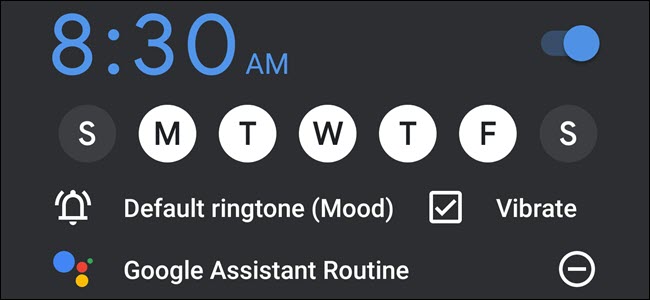
If your Android phone is your alarm clock, you can make it a lot smarter. Google’s Clock app now has Google Assistant-powered routines that can control your smarthome or play audio of choice when you wake up in the morning.
Get Routines Without A Google Home
Perhaps the most significant problem with alarms is that they are easy to snooze—multiple times. And before you know it, you’re running late, skipping breakfast, and hoping for a string of green lights so you won’t be late for work for the fifth day this week.
Smarthome routines can help with that problem; in fact, automation is still the real superpower of smarthomes. With a morning routine, a voice assistant can greet you, turn on the lights, raise the shades, and start reading the news, or playing music. Even if you snooze the alarm, the blaring lights and music will help you wake up.
But if you don’t own a Google Home, Lenovo Smart Clock, or Amazon Echo—or you don’t want such a device in your bedroom—then you’ll lose out on any of the audio portions of the routine. If you’re on Android, you can run routines without a Google Home in your bedroom thanks to an update in the Google Clock’s alarm feature. And it’s fairly straightforward to use.
Unfortunately, this feature is part of the Google Clock app, which isn’t available on the iPhone. You need an Android phone to do this.
How to Add Routines to Your Google Clock Alarms
To add a routine, open the Google Clock app and tap “Alarms” at the top of the screen.

If you have an existing alarm you’d like to use, tap its down arrow. Otherwise, tap the plus symbol to create a new alarm.
Read the remaining 27 paragraphs
How to Automatically Generate Charts in Google Sheets

Google Sheets lets you generate charts automatically to create a visually appealing way to convey information. Using charts is a great way to help people retain data a lot easier than looking at a bunch of numbers.
Google Sheets gives you a wide variety of free graphs from which to choose. Whether you want to use a pie chart or something a little more complicated like a radar chart, you won’t be disappointed with the options available.
The first thing you need to do is fire up your Google Sheets homepage and open a new or existing spreadsheet.
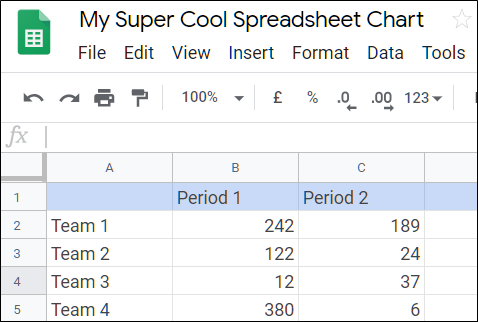
If you just opened a new spreadsheet, now would be a good time to insert some data into the cells. After that, click “Insert” and then “Chart.”

From the drop-down list, click the type of chart you want to add. In this example, we are going to use a smooth line chart, but you can choose from 30 different types of charts.

Read the remaining 19 paragraphs
Mirrorsize uses tech developed by IIT-D to solve the issue of fit in the fashion industry
If You Plan on Installing a Ton of Smarthome Devices, Skip Wi-Fi

A lot of smarthome devices connect via Wi-Fi, which is fine if you only have a handful of them installed. However, if you plan on decking out every room in your home with smarthome gear, be wary of Wi-Fi.
There’s nothing wrong with Wi-Fi-based smarthome devices, but the more you install in your home, the more congested your Wi-Fi network can get. If you’re just starting and are still slowly building up your smarthome, you don’t have anything to worry about yet. However, if you ever plan to add smarts to every switch, outlet, light bulb, and every other device in your house, you may want to use something other than Wi-Fi, and here’s why.
Wi-Fi Has Its Limits
Wi-Fi sure seems like a magical technology with limitless possibilities, but it’s not invincible. It has limitations you should consider.

A Wi-Fi router can theoretically support up to 255 connected client devices. But, even though it’s possible to connect 255 devices to your router, it’s not even close to practical. Not only would all of those devices be competing for bandwidth on your single internet connection, but all of your Wi-Fi devices would be interfering with each other to the point that nothing would get a good wireless connection.
Granted, you’ll probably never get to the point where you have that many devices connected to your home network. But, if you convert every switch, outlet, and light bulb to a Wi-Fi-enabled smart version, you might end up getting very close to hitting that 255 number, depending on the size of your house. And that’s not even counting your phones, laptops, streaming boxes, and more.
Wi-Fi 6 could fix the congestion issue once hardware supporting this new standard appears later in 2019, but you’ll still deal with the device quantity limitation. The fewer devices you have, the better.
Stick to Z-Wave or ZigBee for Lights, Switches, and Outlets

Read the remaining 10 paragraphs
Geek Trivia: Map Makers Include What Device To Identify Their Maps In Lawsuits?

Map Makers Include What Device To Identify Their Maps In Lawsuits? |
|
Think you know the answer? |
|

The Best GoPro Video Software for Beginners and Seniors [Sponsored]

No one would like to upload raw GoPro footages to YouTube if he or she knows how to make videos more attractive through post-editing. Don’t think of video editing as a thing that only professional video editors can do. Actually, it isn’t as difficult as you imagine. There’re quite a lot of newbie-friendly video programs that make it easy for anyone to edit and process GoPro videos. In this post, we will introduce two pieces of well-rated GoPro video software for beginners and also two for advanced users.
- VideoProc
Pros: VideoProc is a lightweight, easy-to-use, feature-rich, and reasonably priced program. It is a good choice for beginners. This tool can make video processing work right, even if it is installed on a low-end computer. Fully supporting Intel/NVIDIA/AMD hardware acceleration, it can transcode and process GoPro videos including large 4K HEVC files at fast speed.
Cons: The editing features VideoProc offers are not enough for power users.
Overview: VideoProc is a piece of multifunctional video processing software compatible with Windows and Mac. Generally, it does video converting, audio converting, DVD digitizing, video downloading, screen/webcam recording, and also video editing.
VideoProc comes with several options specially designed for GoPro users, namely, stabilizing shaky GoPro videos, reducing background noise, and correcting fisheye lens distortion. Apart from them, there’re many other useful features that GoPro users will love.
It can change GoPro video format, from HEVC to H.264 for instance, downscale or upscale video resolution, cut off unwanted parts, split a long GoPro footage into small pieces, merge multiple video clips into a single one file, increase the brightness of videos which you shoot in low light conditions, and more. In addition, VideoProc can troubleshoot some errors, such as “GoPro Quik won’t play video“, by compressing and converting video.
- Quik for Desktop
Pros: You don’t need to spend a penny to use its features.
Read the remaining 15 paragraphs
How to Quickly Search a Website Using Shortcuts on iPhone and iPad

Apple’s Shortcuts app is as powerful as you want to make it, and it can do some incredible things if you know how to wrangle it. You can also use it for some super simple things, like searching a website for text.
If you find yourself needing to search a website for something regularly, then you’re no doubt familiar with the site search operator. Head to Google—or use the address bar—and enter “site:nameofsite.com keywords” to search that site. Searching the How-To Geek website for Shortcuts, for example, would require “site:howtogeek.com shortcuts” and you’ll be rewarded with the results.
It isn’t a complicated process, but it’s cumbersome to type out every time. That brings us to Shortcuts. And don’t worry, if you want to skip to the end and download the shortcut, that’s fine, too.
How to Create a Shortcut to Search a Website
As Shortcuts go, this one’s pretty simple. It consists of two variables and a text box, and it needs just four actions to function.
To get started, open Shortcuts and tap the little “+” icon at the top-right of the screen.

Next, search for “Ask for Input” and tap it. Do this twice to create two actions.

Read the remaining 15 paragraphs
Monday, 4 March 2019
How to Automatically Size Pictures in PowerPoint

PowerPoint can automatically resize an image to fit a shape. You can also resize multiple images already in your presentation to all be the same size. Here’s how it works.
Automatically Size an Image to Fit a Shape
First, go ahead and open a new PowerPoint presentation and insert a new slide that has a content box in it. You can do so by clicking “New Slide” on the “Insert” tab and selecting one of the slide templates. We’ll choose “Title and Content” in this example. You can also insert a content box or shape into any existing slide.

Next, resize the content box by clicking and dragging the corners.

Once you’re happy with the size, click the “Pictures” icon.

Located the image you want and click “Insert.”
Read the remaining 16 paragraphs
Challenges of AI in the Mainstream
Artificial Intelligence (AI) adoption is picking up steam. Enterprises are looking for new ways to deploy AI to transform their business and gain a competitive edge. With the power of machine learning (ML) fueled by the insights mined from massive volumes of data, AI is no longer only for the 1%, but quickly becoming an attainable goal for the masses. The recent survey by CIO.com cites that 80% of companies are now considering AI projects, which in part is contributing to the explosion of ML frameworks that are hitting the market. In fact, organizations are using on average seven different ML tools and frameworks including Tensorflow, Keras, sci-kit learn, Pytorch, and others.
The key to making all of this work is to break down the silos throughout the analytics workflow, from data sources to data teams. By taking a unified approach to analytics, you can introduce operational efficiencies that fuel innovation.
In this third installment of our blog series focused on the most impactful AI trends from 2018 and what we should be excited about in 2019, we ask leading companies who are paving the path towards AI success what they think about this rise in AI adoption and what new challenges will emerge in the year to come.
In 2018, we saw AI becoming more mainstream across industries, yet still very difficult to harness and put into production. How do you see that changing in 2019?
More Involvement from Engineering and DevOps
“I see engineering and DevOps teams becoming more and more involved with AI. They’ve learned that AI is something that’s going to stick around and requires different approaches than previously understood. As the containerization of ML models becomes the norm, data scientists are being seen as 21st-century developers, which will fuel the adoption and mastery of new tools and languages.”
- Stephen Galsworthy, Head of Data Science at Quby
Streamlining the Path to Production
“I was an invited speaker for the Boston Databricks ML Workshop and presented a webinar on our use of the Databricks Unified Analytics Platform and Snowflake. Honestly, a good number—if not a majority—of questions were about this part of the puzzle, the last mile. So while I’m sure we’ll continue to refine our process and technology, I’m also hopeful there will opportunities to evangelize production readiness and process on behalf of Databricks.”
- Stephen Harrison, Data Science Architect at Rue Gilt Groupe
Linking the Promise of ML to Business Needs
“Truly leveraging ML is not easy. It’s attractive to executives but requires a lot of work not just in algorithms but in storage, data processing, software development, etc. The talent is hard to find, expensive and often asked to be ‘unicorns’ in their organization. That core issue won’t go away but more vertical-specific solutions will come up and frameworks will seek to automate more of the process.
ML integration specialists will be critical in providing the link between ML and the business to ensure value is realized. As technology frameworks make it easier to deploy, organizations will experience ML success, less by having the best data scientists and more by ensuring rapid testing of applications against the right business challenges.”
- Bradley Kent, AVP of Program Analytics at LoyaltyOne
Same Challenges, Different Year
“The biggest barrier to deploying AI in production is organizational silos, talent and the lack of data and infrastructure that can support an end-to-end pipeline. The good news is that most businesses are digitizing their processes, collaborating with partners such as Databricks and realigning organization to facilitate AI deployment.”
- Mainak Mazumdar, Chief Research Officer at Nielsen
The Integration of ML Expertise Throughout the Business
“At Overstock, we’re continually refining how teams work together. To that end, we have integrated machine learning within every facet of the organization. The importance of having an AI or ML specialist reporting to the CEO is also really important for two reasons. First, it gives AI and ML a seat at the table, bringing ideas of how this technology can be intertwined in a variety of departments, and secondly, it shows the rest of the organization that ML and AI are crucial to innovation and in order to compete in a fast-moving industry.”
- Kamelia Aryafar, Chief Algorithm Officer at Overstock
Progress is being made and it looks like AI is at a stage of understanding and adoption that it is crossing the chasm and gradually becoming widely adopted across all business and industries to support a myriad of use cases and business needs. The key difference from years past is the readiness of enterprises to put ML models and AI technology into production at a greater scale than ever before.
In the 4th installment of this blog series, we will explore this topic further, as various companies will share their progress with AI and predictions on how they think AI will impact their own business in 2019.
--
Try Databricks for free. Get started today.
The post Challenges of AI in the Mainstream appeared first on Databricks.
Jenkins is accepted to Google Summer Of Code 2019!

On behalf of the Jenkins GSoC org team, I am happy to announce that the Jenkins project has been accepted to Google Summer of Code 2019. This year we invite students and mentors to join the Jenkins community and work together on enhancing the Jenkins ecosystem.
Just to provide some numbers, this is the biggest GSoC ever, 206 organizations will participate in GSoC this year. And it will be hopefully the biggest year for Jenkins as well. We have 25 project ideas and more than 30 potential mentors (and counting!). It is already more than in 2016 and 2018 combined. There are many plugins, SIGs and sub-projects which have already joined GSoC this year. And we have already received messages and first contributions from dozens of students, yey!
What’s next? GSoC is officially announced, and please expect more students to contact projects in our Gitter channels and mailing lists. Many communications will also happen in SIG and sub-project channels. We will be working hard in order to help students to find interesting projects, to explore the area, and to prepare their project proposals before the deadline on April 9th. Then we will process the applications, select projects and assign mentor teams.
All information about the Jenkins GSoC is available on its sub-project page.
I am a student. How do I apply?
See the Information for students page for full application guidelines.
We encourage interested students to reach out to the Jenkins community early and to start exploring project ideas. All project ideas have chats and mailing lists referenced on their pages. We will be also organizing office hours for students, and you can use these meetings to meet org admins and mentors and to ask questions. Also, join our Gitter channel and the mailing list to receive information about such incoming events in the project.
The application period starts on March 25th, but you can prepare now! Use the time before the application period to discuss and improve your project proposals. We also recommend that you become familiar with Jenkins and start exploring your proposal areas. Project ideas include quick-start guidelines and reference newbie-friendly issues which may help with initial study. If you do not see anything interesting, you can propose your own project idea or check out ideas proposed by other organizations participating in GSoC.
I want to be a mentor. Is it too late?
It’s not! We are looking for more project ideas and for Jenkins contributors/users who are passionate about Jenkins and want to mentor students. No hardcore experience required, mentors can study the project internals together with students and technical advisors. We are especially interested in ideas beyond the Java stack, and in ideas focusing new technologies and areas (e.g. Kubernetes, IoT, Python, Go, whatever).
You can either propose a new project idea or join an existing one. See the Call for Mentors post and Information for mentors for details. If you want to propose a new project, please do so by March 11th so that students have time to explore them and to prepare their proposals.
This year mentorship does NOT require strong expertise in Jenkins development. The objective is to guide students and to get involved into the Jenkins community. GSoC org admins will help to find advisers if special expertise is required.
Important dates
-
Mar 11 - deadline for new GSoC project idea proposals
-
Apr 09 - deadline for student applications
-
May 06 - accepted projects announced, teams start community bonding and coding
-
Aug 26 - coding period ends
-
Sep 03 - Results announced
See the GSoC Timeline for more info. In the Jenkins project we will also organize special events during and after GSoC (e.g. at Jenkins world).